PRACTICAL GUIDES · RESEARCH & EDUCATION
How to Open and View DICOM Files on a Mac (CT & MRI)
Open and view CT or MRI DICOM files on an Apple silicon Mac from a folder, disc, USB drive or Finder: install OmniDICOM, open the study, pick a series. No upload.
Based on OmniDICOM 1.1.6 · Application interface: English
1. Check your Mac
The current Mac installer requires Apple silicon and macOS 13 or later. It is a PKG installer. An Intel Mac is not a supported target for this build. A separate installer is available for 64-bit Windows 10/11.
2. Install and open it once
Download the Mac installer with the Download for macOS button below. Open the PKG and follow Continue → Install, then launch OmniDICOM DICOM Viewer from Applications. The 14-day Professional trial starts on that first launch, so be connected to the internet for it; no payment card is required.
3. Choose a DICOM folder
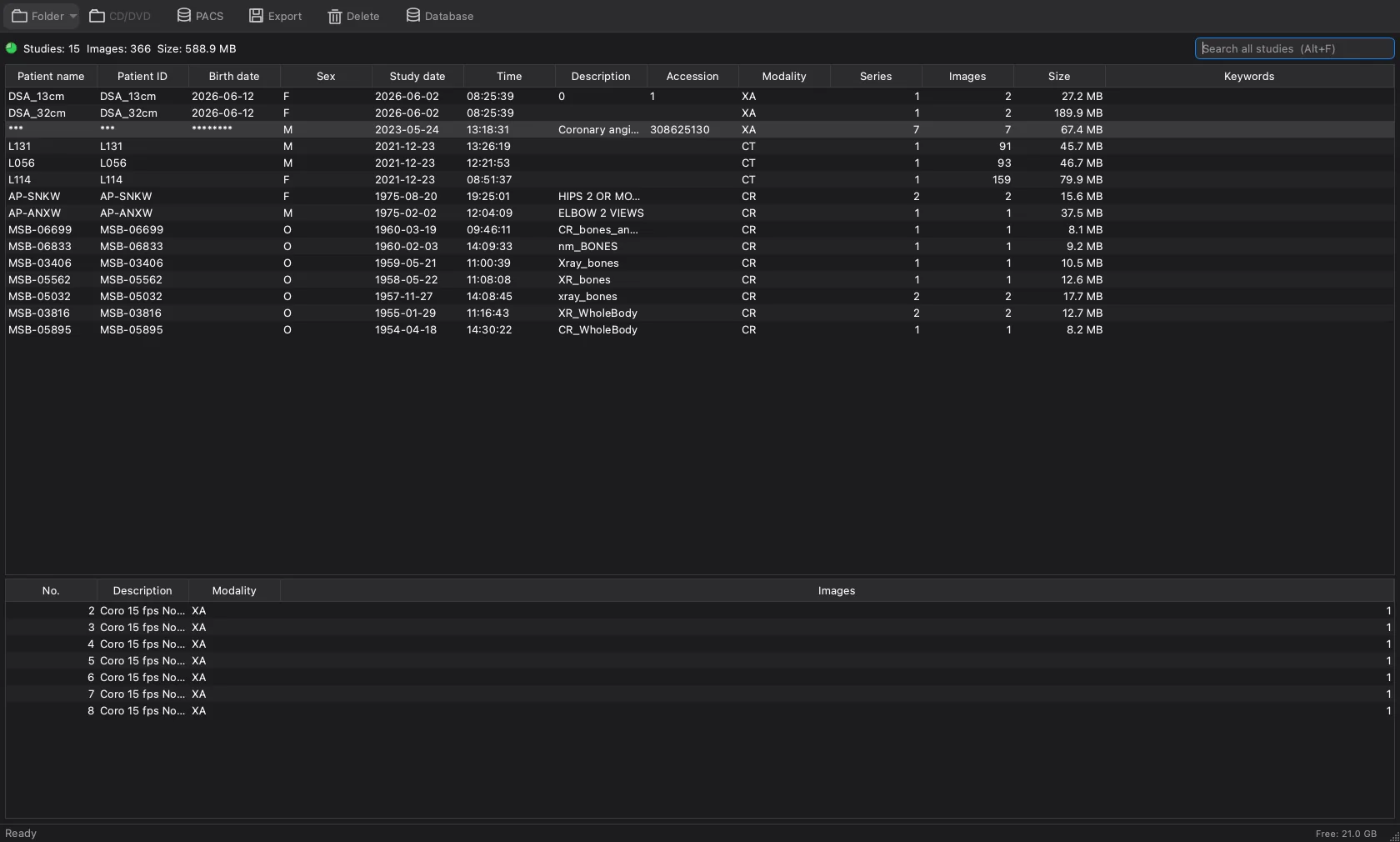
Choose Open Folder… from the File menu, or drag a folder into the viewer. Keep the original folder structure, especially when a disc includes DICOMDIR and image subfolders. A DICOM file may have no .dcm extension; the filename alone does not identify its format.
4. Select a series and browse
Allow loading to finish, then select a series in the left-hand list. Scroll through a multi-image series and use Window, Zoom or Pan to adjust its display. If you see only one frame, first check whether the selected series actually contains multiple images.
5. Keep your original files
Keep a separate copy of your study before changing metadata or deleting files. Use only data you are authorized to access.
Common questions
Why does the installer ask for a password?
macOS can require administrator approval to install into Applications. Use the Mac account authentication shown by the system, not your OmniDICOM licence key.
What if my images will not open?
Check that the files have been fully downloaded or copied and are DICOM rather than a PDF or JPEG export. Contact support with the app version and error text; do not attach patient files to an initial support request.
Can I open a .dcm file by double-clicking it?
Right-click a .dcm or .dicom file in Finder and choose Open With, then OmniDICOM DICOM Viewer. Installing leaves your default viewer as it is; to make a double-click open OmniDICOM, select the file, choose Get Info, pick OmniDICOM DICOM Viewer under Open with and click Change All. Files selected together open together. For a whole study, opening its folder is still the surest way.
Try OmniDICOM for 14 days
No card required to start a trial. After the trial, studies keep opening in five-minute sessions and image exports are watermarked; a Basic or Professional licence removes those limits.
OmniDICOM runs on Mac and Windows computers. Open this page on your computer to download it. Meanwhile, read the how-to guides or watch OmniDICOM at work on YouTube.
macOS 13+ · Apple silicon · signed, notarized PKG
Windows 10/11 · 64-bit · signed EXE