PRACTICAL GUIDES · RESEARCH & EDUCATION
Export DICOM to JPG, PNG or MP4 on Mac & Windows
Save DICOM images as JPEG or PNG and cine runs as MP4 on Mac or Windows, from one slice to a whole study, or copy them straight into PowerPoint slides.
Based on OmniDICOM 1.1.6 · Application interface: English
1. Prepare the view
Open the series, set the window and add any measurements you want in the output. Export writes the whole image, not only the part the panel shows, and never copies the on-screen pan. Whether the zoom carries over depends on Image size under More options. Default (1:1) writes each image at its original size. Current size (as rendered) writes it at the size its panel draws it, so zooming changes the size of the exported image; a series that is not in a panel keeps its original size. The other sizes scale the image to the size they set, whatever the zoom. The corner text is exported too, so check what it shows before exporting or sharing. Under Annotations, Basic (anonymous) leaves out the patient’s name, patient ID, birth date and sex, the institution, and the image and study comments. Other details stay, including the study ID, the study and series descriptions, and the image date and time. It does not de-identify the image, and any text burned into the pixels stays. Disabled leaves out both the corner text and the measurements.
2. Choose the scope
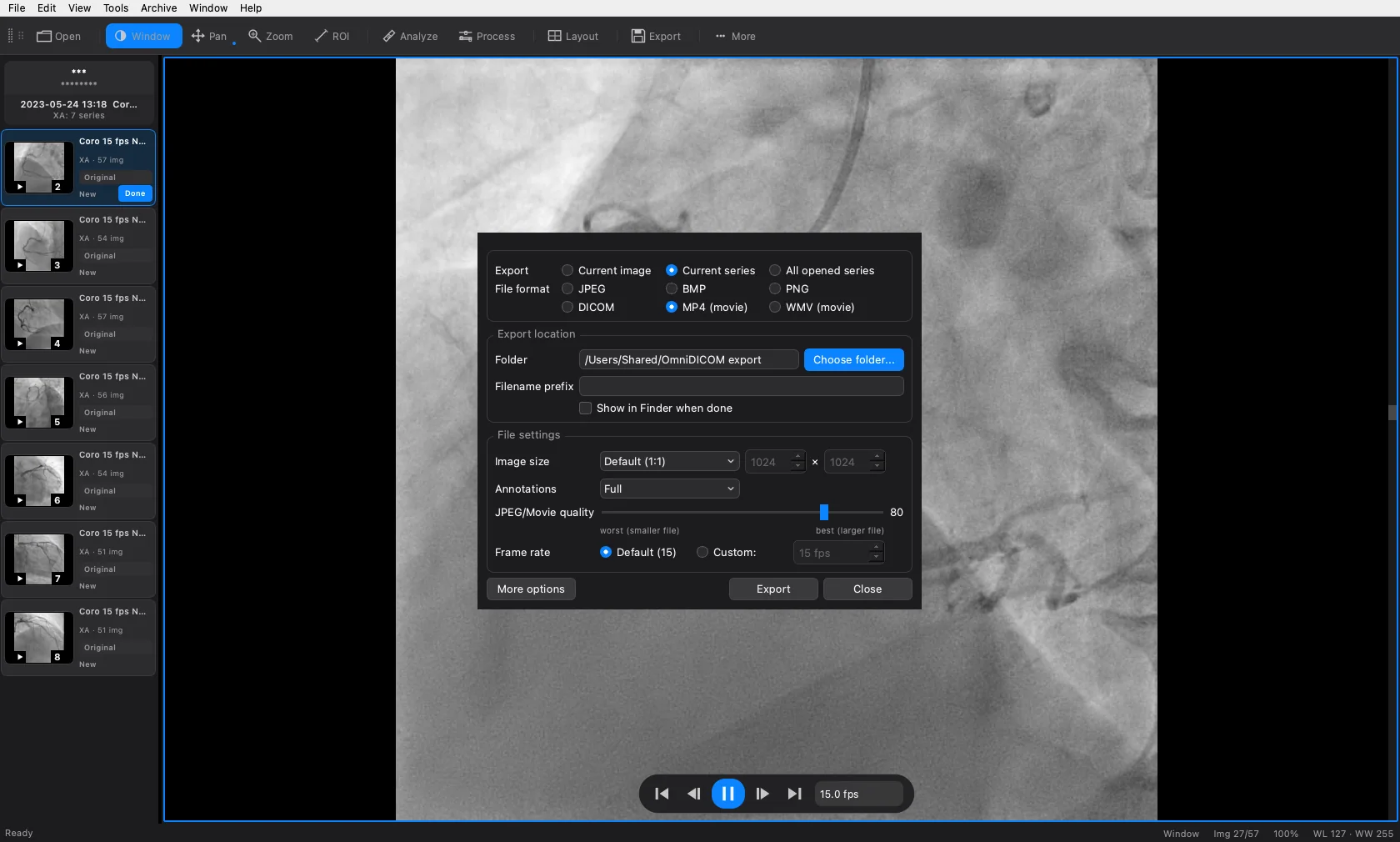
Choose Export… from the File menu, or click Export in the toolbar. Current image exports the image shown in the active panel, Current series every image of the series in that panel, and All opened series every series in the list. Selected series appears when series are selected in the list. Do not choose All opened series when you only intend to export one.
3. Choose a still image or movie
PNG, JPEG and BMP save one still image for each image in the scope. MP4 and WMV save one movie per series, so choose Current series or a wider scope for a movie; there is no frame range to set. Under More options, check Image size, Annotations, JPEG/Movie quality and Frame rate rather than assuming the defaults match your presentation. A one-image series has no cine sequence to export.
4. Choose a destination and export
Under More options, set a writable Folder in Export location. If none is set, Export asks for one; later exports reuse the last folder. Click Export and wait for it to finish: the status bar reports how many items were exported, and Open output folder when done opens the location of the first file. If the operation reports an error, do not treat a partially written file as a successful export.
5. Open the exported file
Open the resulting image or movie in the application you plan to use for the presentation. Check image appearance, playback and any overlays. Trial image exports carry a watermark; a paid licence is required to remove the trial restriction.
Common questions
Does a PNG or MP4 retain the original DICOM data?
A rendered image or movie is not a replacement for the source DICOM study. Keep the source files for later measurements, metadata inspection and reproducible research.
Why is WMV unavailable?
WMV availability depends on the bundled encoder. Use MP4 when WMV is disabled or an export reports an MP4 fallback. Check the actual saved extension.
Try OmniDICOM for 14 days
No card required to start a trial. After the trial, studies keep opening in five-minute sessions and image exports are watermarked; a Basic or Professional licence removes those limits.
OmniDICOM runs on Mac and Windows computers. Open this page on your computer to download it. Meanwhile, read the how-to guides or watch OmniDICOM at work on YouTube.
macOS 13+ · Apple silicon · signed, notarized PKG
Windows 10/11 · 64-bit · signed EXE