PRACTICAL GUIDES · RESEARCH & EDUCATION
How to edit DICOM metadata
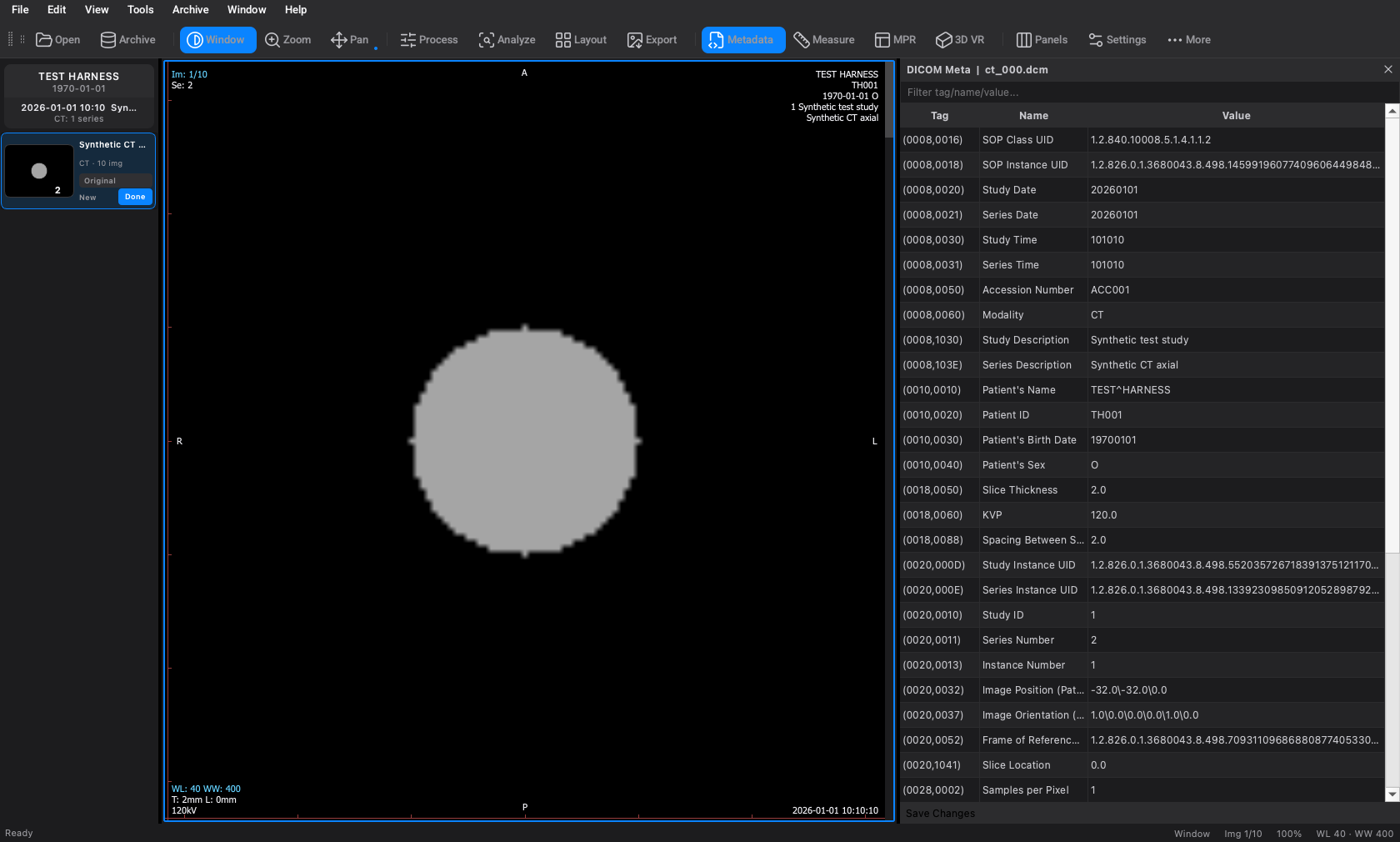
Inspect Tag, Name and Value in the metadata panel, edit supported values and save them to a series. Metadata editing is included in Basic.
Based on OmniDICOM 1.0.4 · Application interface: English
1. Work on a copy first
Save Changes writes directly into the original files of the selected series. It does not automatically create a backup. Copy the whole series to a separate folder and open that copy when you need to preserve the original metadata.
2. Open Metadata for the intended series
Select the intended series and open Metadata from the toolbar. Check the panel title and the series shown in the viewer so you know which files you are working on.
3. Find the field
The Filter tag/name/value field searches across the tag, name and displayed value. Try Series Description to find the description field. Names such as Patient ID or acquisition parameters help you locate other fields, but not every field is editable.
4. Edit an appropriate value
Double-click an editable value. For practice, change the synthetic sample’s Series Description to a clear research label. Avoid changing identifiers or geometry fields without understanding how your downstream tools use them. Sequences, pixel data and overlay data are read-only.
5. Save and check the result
Select Save Changes to write edited tags across the series files. Reopen the copied series and check the value. If saving fails, inspect the reported error and file permissions; an unsaved on-screen edit is not proof that the files changed.
Common questions
Is metadata editing the same as anonymization?
No. Editing a name or ID does not remove every identifying tag, private field, document or text burned into pixels. Use a separately validated de-identification workflow before sharing patient data.
Why is Save Changes disabled?
Check that a series is loaded and an editable value has actually been changed. A read-only value or unchanged text will not create a pending edit.
Practice without patient data
This free synthetic CT contains 24 slices of a geometric phantom. It is not clinical data and is not a diagnostic or image-quality benchmark. Unzip it, then open the folder in OmniDICOM.
Download synthetic CT (ZIP)Next steps
No card required to start a trial. Continued use requires a paid licence; trial image exports are watermarked.